Parameters |
Description |
BACKUP_SET |
The name or ID of the backup set that you want to restore. If the backup set name is not in English, please use BackupSetID
e.g. BACKUP_SET="1119083740107"
or BACKUP_SET="FileBackupSet-1" |
RESTORE_TO |
The directory that you want the files to restore to.
e.g.
Windows
RESTORE_TO="C:\Temp"
Linux, Mac OSX
RESTORE_TO="/tmp"
If you set it to ""
e.g. RESTORE_TO=""
The files will be restored to the original location. |
RESTORE_FROM |
The file/directory on the backup sertver that you would like to restore.
e.g.
Windows
RESTORE_FROM="C:\Data"
Linux, Mac OSX
RESTORE_FROM="/Data" |
POINT_IN_TIME |
The point-in-time snapshot of a successful backup that you want to restore from the backup server. Use "Current" for the latest backup snapshot
e.g. SET POINT_IN_TIME="Current"
You can specify a particular point-in-time
e.g. SET POINT_IN_TIME="2006-10-04-12-57-13"
For the available point in time on the backup server, you can execute the following script.
Windows
ListBackupJob.bat
Linux, Mac OSX
ListBackupJob.sh |
RESTORE_PERMISSION |
If you want to restore file permission, set the value to "N", otherwise set the value to "Y" to restore file permission. |
SKIP_INVALID_KEY |
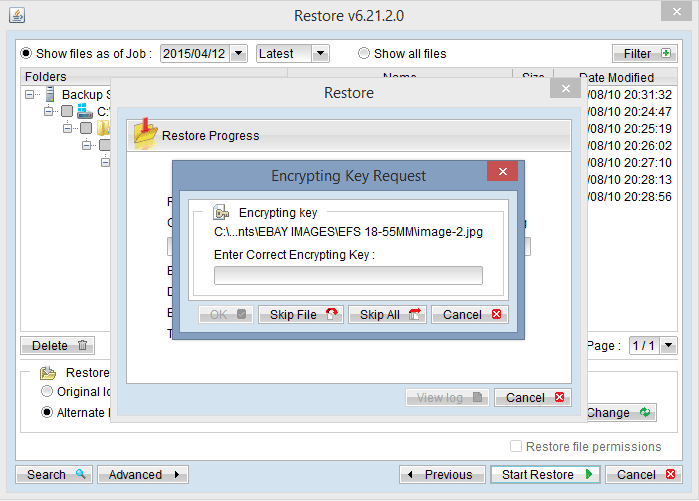
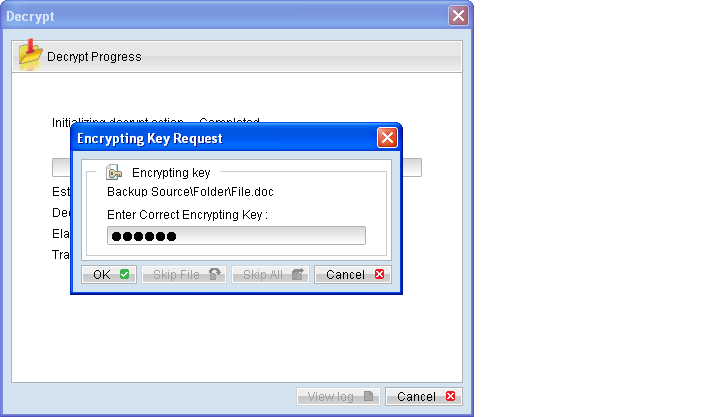
If you want to prompt user to input a correct encryption key, set the value to "N", otherwise set the value to "Y", it will skip the restore file if the file has an invalid encryption key. |
SYNC_OPTION |
Set this value to "Y" if you want to enable the sync option, ie. delete extra file option. Set this value to "N" if you do not want to enable the sync option. If you set the option with "", it will prompt for selection. |
REPLACE_EXISTING_FILE |
Set this value to "-all" to replace all existing file(s) of the same filename. If the value is set to "-none", it will skip the file restore if same filename exists. If you set the option with "", it will prompt for selection. |
SETTING_HOME |
Optional parameter for you to set the user home. By default, the option "" will points to your home directory with the .obm folder.
e.g. (Windows) "C:\Documents and Settings\John\.obm"
(Linux) "/home/john/.obm" |
FILTER |
This parameter can help you to filter the files that you want to restore. There are 3 options.
-Pattern=xxx
-Type=yyy
-Target=zzz
Where
xxx is the file pattern,
yyy is the filter type, which can be one of the following: [exact | exactMatchCase | contains | containsMatchCase | startWith | startWithMatchCase | endWithMatchCase | endWith ]
zzz is the filter target, which can be one of the following: [toFile | toFileDir | toDir]
e.g. FILTER="-Pattern=.txt-Type=exact-Target=toFile" |
 button beside a folder.
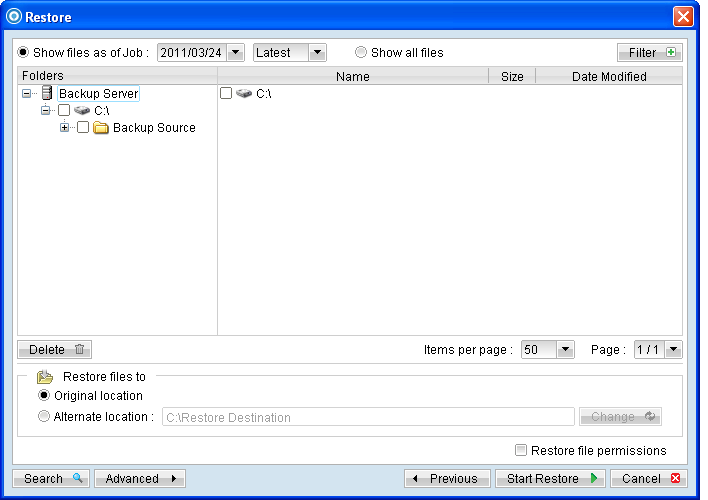
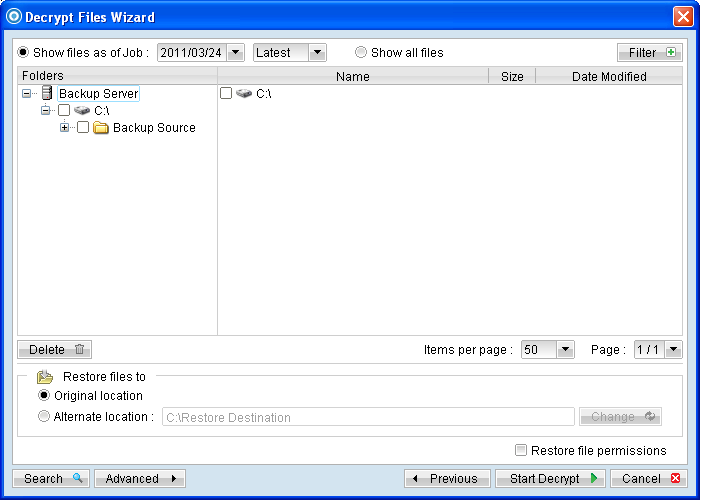
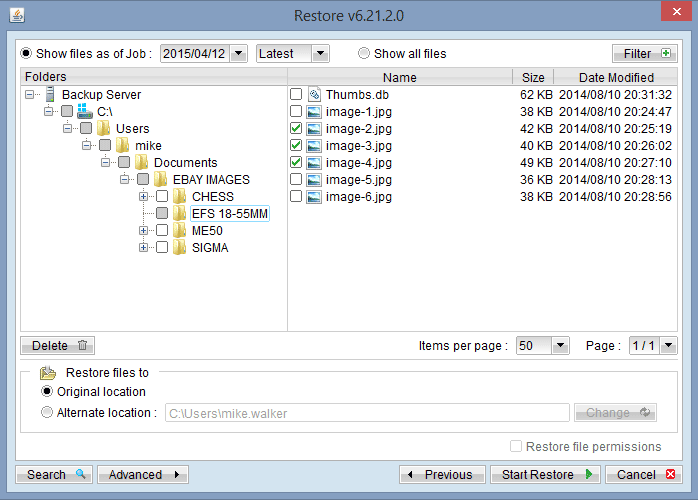 For example, select [Show files as of Job], [2011/03/11] and [11:00:00] to display the files available for restore since the backup job performed on 11:00am of Mar 11th, 2011.
Select the [Show all files] to display all files available for restore.
For example, select [Show files as of Job], [2011/03/11] and [11:00:00] to display the files available for restore since the backup job performed on 11:00am of Mar 11th, 2011.
Select the [Show all files] to display all files available for restore.