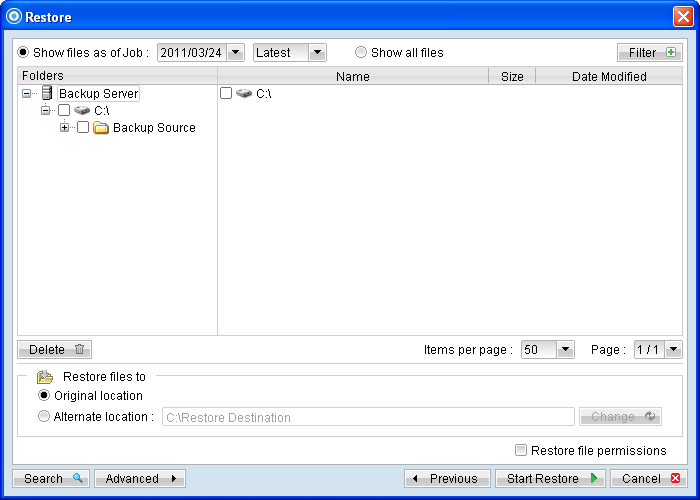
Menu Items |
Description |
Show files as of Job |
Radio button to display files available for restore as of which backup job. |
[YYYY/MM/DD] |
Dropdown menu to select the date of a backup job (used with the [Show files as of Job] option). |
[hh/mm/ss] |
Dropdown menu to select the time of a backup job (used with the [Show files as of Job] option). |
Show all files |
Radio button to display all files available for restore. |
Filter |
Click to open the filter option. |
Delete |
Click to delete the selected file on the OBS. Important: File will not be available for restore in the future if they are deleted from the OBS. |
Original location |
Restore directories and files to their original location. |
Alternate location |
Restore directories and files to an alternate location specified. |
Change |
Click to change the directory path of the restore destination. |
Restore file permissions |
Checkbox to enable or disable restore of file permission. |
Search |
Click to open the Search option. |
Advanced |
Click to open advanced option: Delete extra files - Click to synchronize the selected restore source with the restore destination during the restore process. Follow Link - Click to restore link destination.s data. |
*The availability of features listed above may be service provider dependent. If a feature is not available, please check with your service provider for further details and availability. Select the [Show files as of Job] to display files available as of a particular backup job. For example, to display the files available for restore since the backup job performed on 11:00am Mar 11th, 2011. Select [Show files as of Job], [2011/03/11] and [11/00/00] Alternatively, select the [Show all files] to display all files available for restore. For restore to the original location on the client machine, select the [Original location] radio button. For restore to an alternate location, select the [Alternate location] radio button, and click [Change] to change the directory path which you would like to restore to.