Click on the [Search] button to open the filter menu.
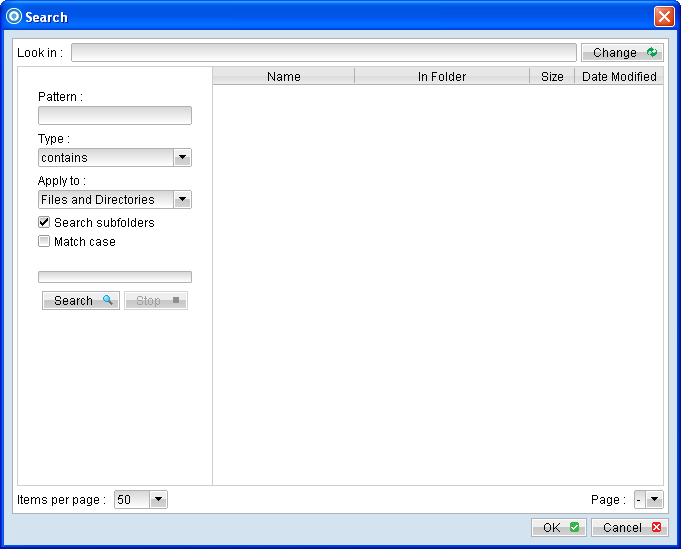
Menu Items |
Description |
Pattern |
Click on the [Change] button to browse to the search destination. Note: Backup filter is case sensitive. |
Pattern |
Input box for entering the pattern of files that you would like to search for./p> |
Type |
Dropdown menu for selecting the type of pattern, they include: [contains] [exact] [starts with] [ends with] |
Apply to |
Dropdown menu for selecting if the search is applied to: [Files and Directories] [Files only] [Directories] |
Search subfolders |
Click to enable or disable search on the subfolders of the selected [Look in] directory. |
Match case |
Checkbox to enable or disable case sensitivity. |
Search |
Click to begin the search. |
Stop |
Click to stop the search process. |
*The availability of features listed above may be service provider dependent. If a feature is not available, please check with your service provider for further details and availability.
The [Search] option can be used to locate a directory or file within a backup set with large amount of data. When the search is completed, user can select the data for restore in the search menu. For restore that follow a certain pattern, for example, Microsoft Words document file that ends with .doc only. Enter the pattern .doc into the [Pattern] textbox, select type [ends with] from the [Type] dropdown menu, and click [Apply].