Menu Items |
Description |
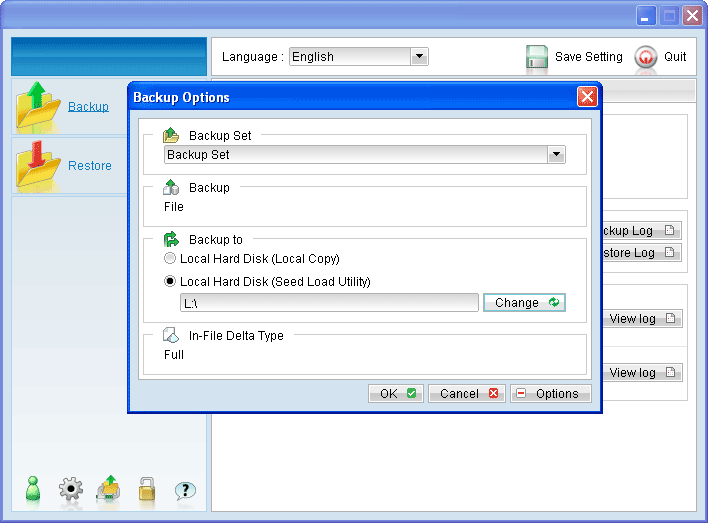
Backup Set |
Dropdown menu to select backup set. |
Local Hard Disk (Local Copy) |
Radio button to enable backup to local hard disk for local copy backup. |
Local Hard Disk (Seed Local Utility) |
Radio button to enable backup to local hard disk for seed load backup. |
Change |
Click to browse to the directory path which you would like to store the seed load backup. |
To start a seed load backup:
- Login to the backup application's user interface.
- Select the [Options] button to expand the backup options menu.
- Select the corresponding backup set.
- Select the radio button beside [Local Hard Disk (Seed Load Utility)].
- Click on the [Change] button to browse to the directory path which you want the seed load data to be stored at (e.g. the remove-able hard disk).
- Press the [OK] button to start the backup job.
- Transport the data in the specific directory to the data center
Menu Items |
Description |
Backup Set |
Dropdown menu to select backup set. |
Local Hard Disk (Local Copy) |
Radio button to enable backup to local hard disk for local copy backup. |
Local Hard Disk (Seed Local Utility) |
Radio button to enable backup to local hard disk for seed load backup. |
Change |
Click to browse to the directory path which you would like to store the seed load backup. |
Note:
A seed load backup can only be performed manually.