 Before files are uploaded to the backup server, they are first compressed and encrypted with an algorithm, mode and key of your choice.
Menu Items |
Description |
Encryption Key |
Text box displaying the encryption key for the corresponding backup set. |
Mask encryption key |
Checkbox to enable or disable masking of the encrypting key. |
*The availability of features listed above may be service provider dependent. If a feature is not available, please check with your service provider for further details and availability.
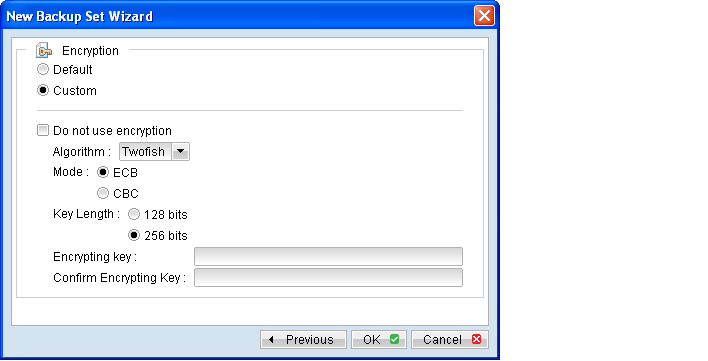
Encryption settings are set at a backup set's creation time in the New Backup Set Wizard.
Menu Items |
Description |
Default |
Radio button to select default encrypting key. Default encryption setting - Encryption algorithm: AES Encryption mode: ECB Key Length: 256 bits Encrypting key: Same as current password |
Custom |
Radio button to select your custom encryption setting, including: Encryption algorithm Encryption mode Key Length Encrypting key |
Do not use encryption |
Checkbox to disable encryption (not recommended). |
Algorithm (used with Custom) |
Dropdown menu to select the encryption algorithm setting: Twofish - Twofish algorithm DESede - Triple DES algorithm AES - Advanced Encryption Standard algorithm |
Mode (used with Custom) |
Radio button to select ECB or CBC encryption mode: ECB - Electronic Cook Book mode CBC - Cipher Block Chaining mode |
Mask encryption key |
Radio button to select 128 bit or 256 bit key length. |
Encryption Key |
Input box for entering your choice of encrypting key. |
*The availability of features listed above may be service provider dependent. If a feature is not available, please check with your service provider for further details and availability. Select [Default] encryption setting if you are not familiar with encryption algorithm or mode. The default encryption setting is:
- Encryption Algorithm: AES
- Encryption Mode: ECB
- Key Length: 256 bits
- Encrypting Key: Same as current password
Encryption settings are set at a backup set's creation time and cannot be modified afterward.
If custom encrypting key is used, please considering the following to create a strong encrypting key:
- Length
- Make sure the encryption key is at least eight or more characters.
- Complexity
- Include lowercase, uppercase letters and numbers, use the entire keyboard not just the letters and characters you use or see most often.
Avoid creating encryption key that uses:
- Dictionary words.
- Words spelled backwards, common misspellings and abbreviations.
- Sequence or repeated characters.
- Personal information, your name, your birthday, or similar information.
- Include letters and numbers, use the entire keyboard not just the letters and characters you use or see most often.
Important: By selecting default encryption setting, password string of the backup account will be configured as encrypting key for the corresponding backup set.
The encryption key is independent from a backup account's password.
Encryption settings are set at a backup set's creation time, even if the password is changed afterward, the encryption key remain the same.
It is very important that the encryption key is written down, and additional copies of the key are made, and stored in safe places so that it is readily available when needed to restore data.
If the encryption key is lost, the data is irretrievable.
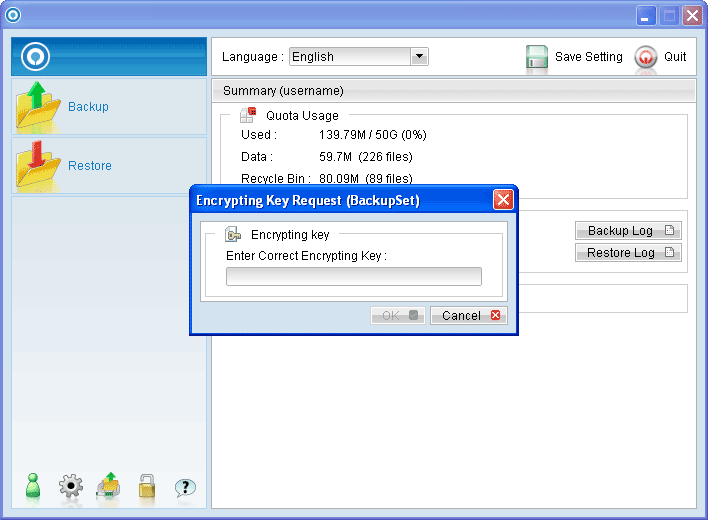
For initial login of existing backup user on new computer, you will be prompted for the encrypting key of all existing backup set.
Menu Item |
Description |
Enter Correct Encrypting Key |
Input box for entering encrypting key of existing backup set. |
OK |
Click to confirm on encrypting key. |
Cancel |
Click to proceed without using encrypting key. |
Enter the correct encrypting key and click [OK] to proceed.
Alternatively, press [Cancel] to proceed (e.g. if the encrypting key is lost) without encryption, for all backup job performed afterward.
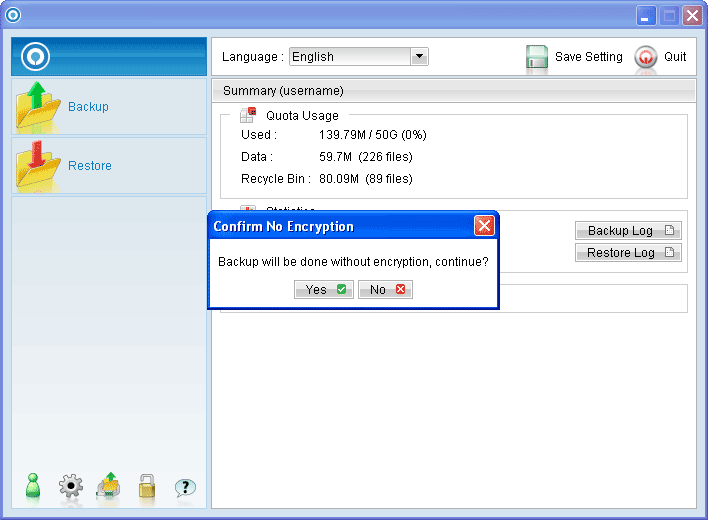
A confirmation box will be prompted to confirm.
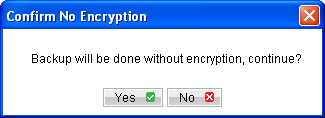
By continuing without encryption, it allows data backed up in the future to be restorable (they are no longer encrypted).
However, existing data that are encrypted by the lost encrypting key would not be restorable.
Important:
In the event of lost encrypting key, it is strongly recommended that a new backup set be created. This ensures that data backed up in the future are both encrypted and restorable.