Section 6 - Configuring backup Sets
A backup set defines the configuration of a backup routine, such as backup schedule, backup source and encryption setting as well as other options.
6.1.13 Options
There are three methods for restoring data:
6.1.13.1 Temporary Directory for storing backup files
Back to top
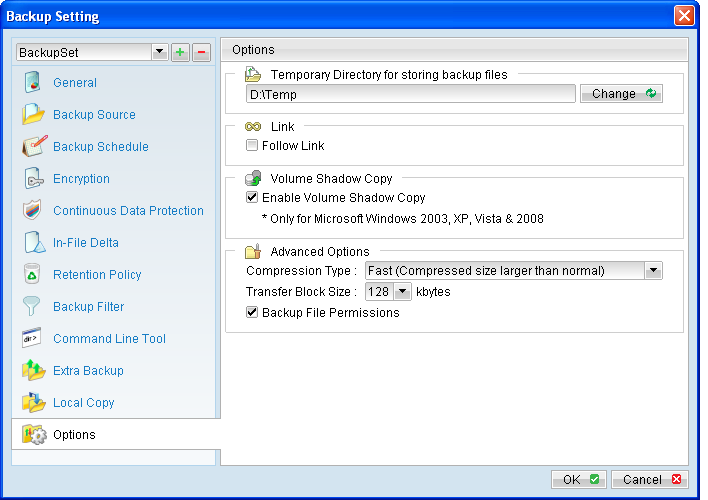
The temporary directory is used for various purposes, such as storage of temporary spooled file (for database specific backup type), remote file list, local file list, temporary delta file and other files of temporary nature.
 To configure the temporary directory location, click [Change] and browse to the directory path for storing the temporary data.
For database specific backup type, data files spooled by the latest backup job can be kept by disabling the [Remove temporary files after backup] option.
To configure the temporary directory location, click [Change] and browse to the directory path for storing the temporary data.
For database specific backup type, data files spooled by the latest backup job can be kept by disabling the [Remove temporary files after backup] option.

Notes:
Administrators need to pay attention to the maximum file size limitation of different file system format, so that database file can be spooled to the temporary directory.
6.1.13.2 Follow Link
Back to top
Follow Link defines whether to follow an NTFS junction point or NTFS symbolic link during backup.

Menu Items |
Description |
Copy to Local Hard Disk |
Checkbox to enable or disable local copy backup. |
Copy to |
Directory which the local copy data are stored. |
Remove deleted files in retention area |
Checkbox to enable or disable the retention policy of the local copy backup. |
Keep deleted file(s) for |
Dropdown menu to select a basic retention policy.
Note:
For local copy backup, only basic retention policy can be applied. |
Skip backing up to Offsite Backup Server |
Checkbox to skip or to perform off-site backup for the corresponding backup set. |
To enable the [Follow Link] option, select the checkbox beside the follow link option.
Note that system protected junction point such as the Documents and Settings on Windows 2008 server cannot be selected as backup source under the advanced backup source dialog (e.g. there is no select-able checkbox beside system protected junction point).
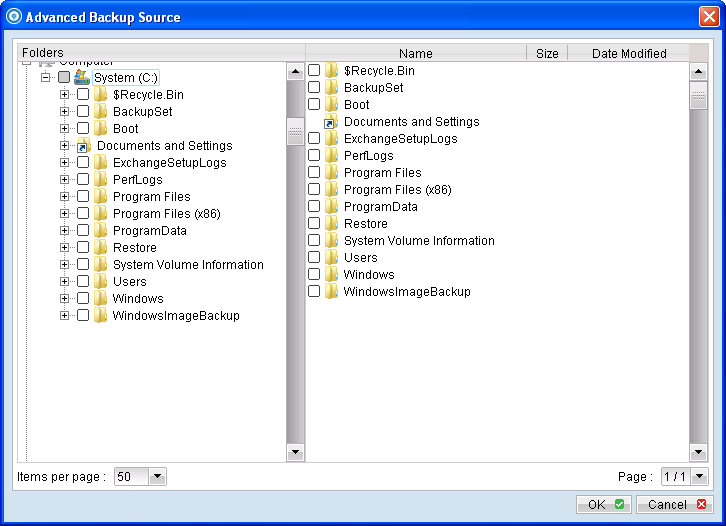 To manually select system protected junction points for backup, select the parent directory of the junction point, or enter the corresponding junction point (e.g. C:\Documents and Settings) on the web interface.
6.1.13.3 Enable Volume Shadow Copy
Back to top
Enable Volume Shadow Copy defines whether to enable Microsoft Volume Shadow Copy Service (VSS) for the backup set.
Enable Volume Shadow Copy |
Action |
Enabled |
Create a snapshot of the data to be backed up for exclusively opened file. |
Disabled |
Do not create a snapshot of the data to be backed up for exclusively opened file.
Error message will be shown for files that are opened during the backup process.
|
*The availability of features listed above may be service provider dependent. If a feature is not available, please check with your service provider for further details and availability.
Enabling the Volume Shadow Copy option will allow backup of local files that are exclusively opened during the backup process (e.g. Outlook PST file).
Some requirements of the Volume Shadow Copy option include:
- Volume Shadow Copy can only be applied for local drive; exclusively opened file on network shared drive cannot be backed up even with the Volume Shadow Copy option enabled.
- Volume Shadow Copy is only available on Windows platforms released after Windows 2000 (e.g. XP / 2003 / Vista / 2008 / 7 / SBS 2011).
- The user using the backup application must have administrative privileges to access the Volume Shadow Copy service on a computer.
- At least one of the partitions on the machine must be in NTFS format.
For more technical information on Volume Shadow Copy, please refer to following page from Microsoft for details:
http://technet.microsoft.com/en-us/library/cc785914(WS.10).aspx
6.1.13.4 Compression
Back to top
Compression type defines the compression method that the backup application will use during backup (for the corresponding backup set).
There are 3 compression types available for user to select:
- No Compression
- Normal
- Fast (Compressed size larger than normal)
By default, newly created backup set is configured to uses [Fast] compression type.
Note:
The [Compression Type] option is only available for OBM version 6.9 or above connecting to backup server version 6.9 or above (please consults your service provider for details).
For existing backup set created in previous version, the compression type will be [Normal].
6.1.13.5 Transfer Block Size
Back to top
Transfer block size defines the block size that the backup application will use to transfer your backup data to the backup server.
Note that certain firewall applications or proxy servers may block out-going network traffic with large block size for security reasons.
If you are in a network with this type of restriction, please lower the transfer block size value
To change the transfer block size of any backup set, select the [Options] tab on the left panel and then select the corresponding block size from the [Transfer Block Size] dropdown menu.
Press the [OK] button, and save before exiting out of the backup application.
6.1.13.6 Backup File Permission
Backup file permission defines whether to backup operating system file permission of the data selected as backup source.
Back to top