The main window will be displayed after a successful login.
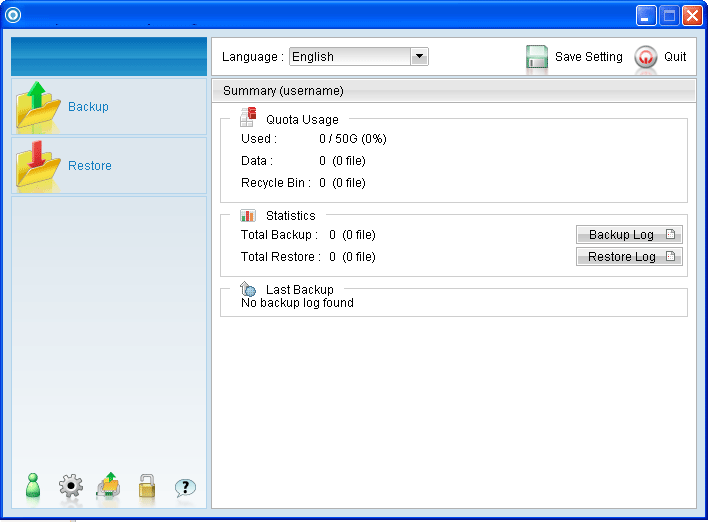
Icon |
Menu Item |
Description |
 |
Backup |
Click to perform backup for an existing backup set. |
 |
Restore |
Click to access the restore menu, for restoring backed up data. |
 |
Save Setting |
Click to save settings. |
 |
Quit |
Click to exit out of the backup application. |
 |
User Profile |
Seed load backup can only be performed manually. |
 |
Backup Setting |
Click to access the backup setting menu. |
 |
Decrypt Local Copy Wizard |
Click to access the decrypt local copy wizard. |
 |
Decrypt File Wizard |
Click to access the decrypt file wizard. |
 |
About OBM Backup |
Click to access the About OBM Backup dialog. |
Language |
Drop down menu for selecting language to be displayed. |
|
Backup Log |
Click to view previous backup log. |
|
Restore Log |
Click to view previous restore log. |
*The availability of features listed above may be service provider dependent. If a feature is not available, please check with your service provider for further details and availability.
Click on the [Backup] button to perform a backup for an existing backup set.
Click on the [Restore] button to restore backed up data from the backup server to the client machine.
Other options will be discussed in the following chapters.