After a successful installation of OBM, a system tray icon will be installed, and displayed under the Windows system tray area.
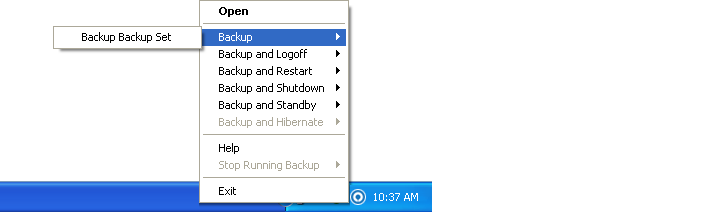
Right clicking on the OBM system tray icon will display a menu, providing the following functions:
Menu Item |
Description |
Open |
Click to open the logon dialog. |
Backup |
Click to perform backup for a specific backup set in silent background mode. |
Backup and Logoff |
Click to perform backup for a specific backup set in silent background mode and logoff from Windows when the job is completed. |
Backup and Restart |
Click to perform backup for a specific backup set in silent background mode and restart Windows when the job is completed. |
Backup and Shutdown |
Click to perform backup for a specific backup set in silent background mode and enter the Standby mode of Windows when the job is completed. |
Backup and Hibernate |
Click to perform backup for a specific backup set in silent background mode and enter the Hibernate mode of Windows when the job is completed |
Help |
Open the help dialog. |
Stop running backup |
Click to stop a running backup job chosen from the sub-menu. |
Exit |
Click to closes this system tray launcher application. |
* The availability of features listed above may be service provider dependent. If a feature is not available, please check with your service provider for further details and availability.