Refer to the following instructions to restore Microsoft Exchange Server 2010:
- Prepare the operating system for the Exchange Server restore (if required).
- Restore Windows Active Directory (if required).
- Install the OBM (if required - http://portal.vsl-net.com/downloads/obm-win.exe).
- Startup the [Microsoft Information Store] services from Windows Services.
- Continue with the following sections for restore to the original Exchange server, or to a new Exchange server.
Install the original version of Windows and Exchange Server (with the same level of service pack installed as in the original system).
Restore the System State data from the OBS, and then restore the System State using WBAdmin.exe.
Refer to the "How to restore Windows System State" chapter for detailed instruction.
Refer to the "Installing OBM" chapter for detailed instruction.
Restore Exchange Database to Original Location To restore Exchange database to the same Exchange server:
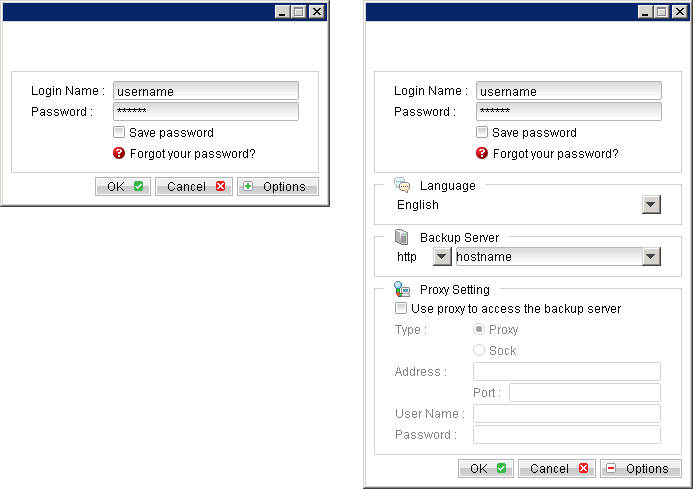
- Login to the backup application's user interface.
- Click on the [Restore] button on the left panel.
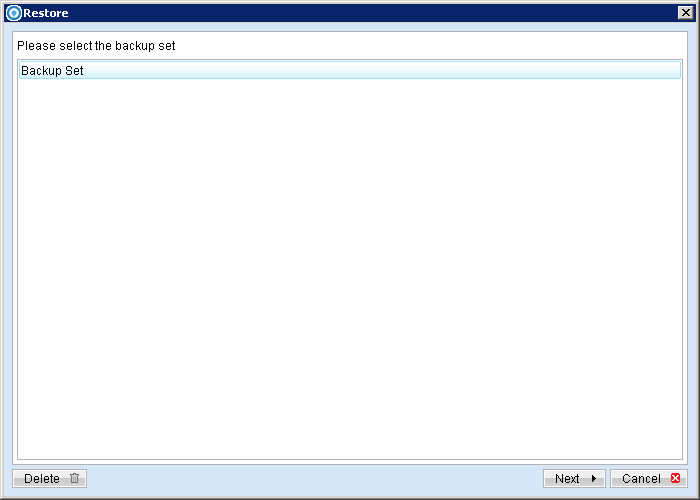
- Select the backup set to be restored, and [Next].
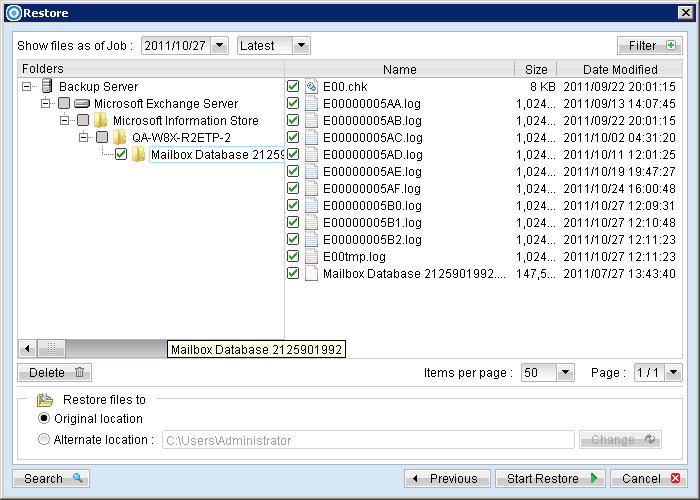
- Expand the server tree, select the database to be restored, and [Original Location] for the [Restore files to] option.
- Press the [Start Restore] button to begin the restore process.
- The restore process is now completed.
Restore Exchange Database to Alternate Location To restore Exchange database to a new Exchange server:
- Login to the backup application's user interface.
- Click on the [Restore] button on the left panel.
- Select the backup set to be restored, and [Next].
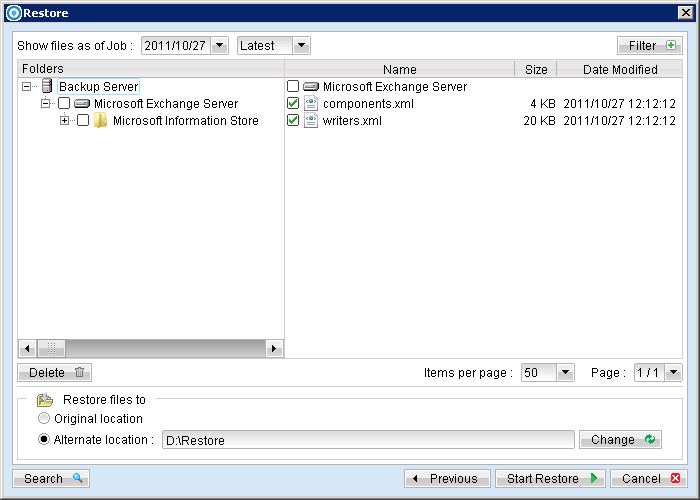
- Click on [Backup Server], select [components.xml] and [writers.xml] for restore.
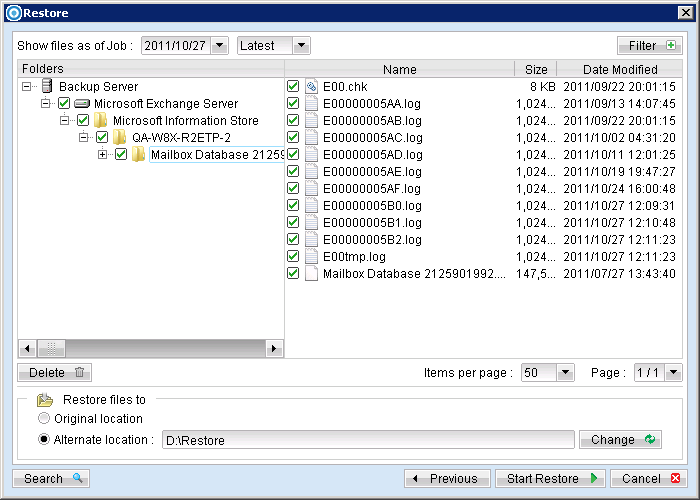
- Expand the server tree, select the database to be restored, and select [Alternate location] and browse to the restore destination folder.
- Please ensure the directory structure is the same as it appears in the File Explorer:
-->[Restore Destination]
--------->[Microsoft Exchange Server]
--------->[components.xml]
--------->[writers.xml]
---------------->[Microsoft Information Store]
------------------------------>[Server Name]
-------------------------------------->[Database Name]
${OBM-Install-Home}\bin\ExchangeRestore2010.exe
Exchange server recovery |
C:\Program Files\Backup Manager\bin>ExchangeRestore2010 D:\Restore |