A VM can be restored to the original location with the following conditions:
- - If the VM to be restored does not exist on the original hypervisor. The VM will be restored as a new virtual machine.
- - If the VM to be restored still exist on the original hypervisor. The existing VM will be replaced by the backed up version.
Important: Virtual machine backed up with the MS VM backup module can only be restored to the original Hyper-V server.
Refer to the following instructions to restore VM running on Microsoft Hyper-V Server.
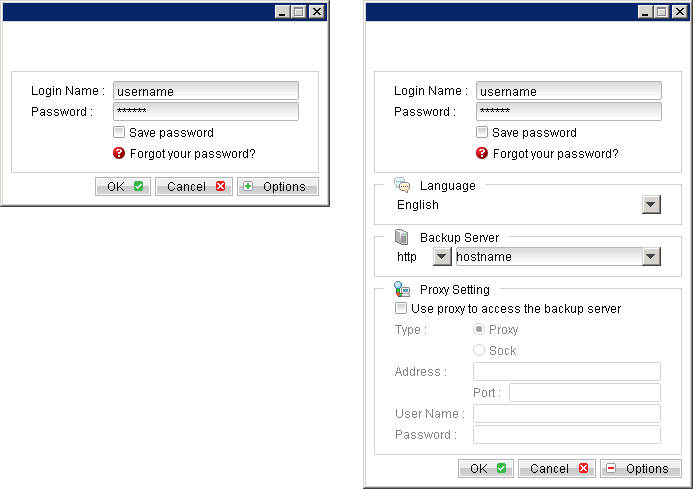
- Login to the backup application's user interface.
- Select the [Restore] button and the corresponding backup set.
- Select the virtual machines to be restored and choose [Original location] for restore files to.
- Click the [Start Restore] button to begin the restore process.
- User will be prompted if a virtual machine selected to be restored exist on the hypervisor.
- When the restore process is completed, the virtual machines will be restored to the original hypervisor.
- Open Hyper-V Manager, click Start, Administrative Tools and click Hyper-V Manager.
- Under Virtual Machines, right click on the newly restored virtual machine, select [Setting].
- Modify settings which may be conflicting with other existing virtual machines (e.g. network setting).
- Start the virtual machine afterward.
- For any virtual disk that was not restored (e.g. original backup source did not include all virtual disks configured for the VM).

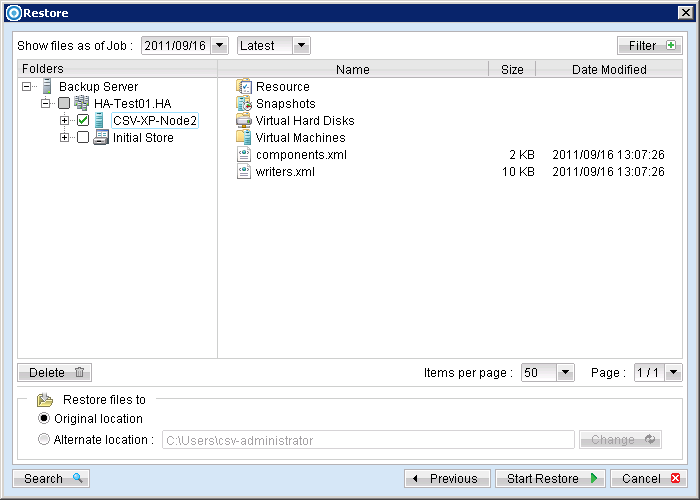
Note: Select the Initial Store to restore the Authorization Manager Security (role based access control) settings
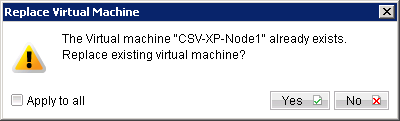
Important: For restore of existing virtual machine (restoring a previous version), the existing virtual machine will be removed before the restore process begin.


Important: If the following error is displayed during the startup, please remove the Saved State of the corresponding VM.
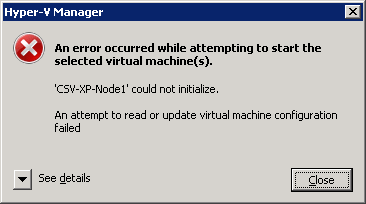
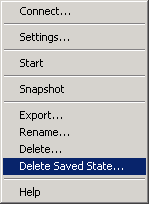
In Hyper-V Manager, right click on the corresponding VM and select [Delete Saved State], start the VM again afterward.
Continue to the next steps for instruction to remove the missing virtual disk from the virtual machine's configuration.
For original virtual machine with no snapshot
- Open Hyper-V Manager.
- Under Virtual Machines, right click on the newly restored virtual machine, select [Setting].
- For each virtual disk that was not restored, remove the corresponding [Hard Drive] setting from [Hardware].
- Start the virtual machine afterward.

Important: If the following error is displayed during the startup, please remove the Saved State of the corresponding VM.
In Hyper-V Manager, right click on the corresponding VM and select [Delete Saved State], start the VM again afterward.
For original virtual machine with snapshot
- Locate the virtual machine's folder location on the Hyper-V server.
- Stop the Hyper-V Virtual Machine Management service.
- Remove the corresponding entry from the Virtual Machine configuration ${VM-GUID}.xml file.
- Open the corresponding ${VM-GUID}.xml file at the following location with a text editor.
Important: Serious problem may occur if the configuration files are incorrectly modified; it may prevent the virtual machine from starting.
Please only perform the following procedures if you have in-depth knowledge on Hyper-V management.

${VM-Location}\Virtual Machine\${VM-GUID}.xml
<controller0>
<drive0>
       <pathname type="string">D:\Hyper-V\Virtual Machine Name\Virtual Hard Disks\Name_GUID.avhd</pathname>
       <type type="string">VHD</type>
   </drive0>
   <drive1>

       <pathname type="string">D:\Hyper-V\Virtual Machine Name\Virtual Hard Disks\Second_Disk_GUID.avhd</pathname>
       <type type="string">VHD</type>

   </drive1>
</controller0>
<type type="string">VHD</type>To
<type type="string">NONE</type>
<controller0>
<drive0>
       <pathname type="string">D:\Hyper-V\Virtual Machine Name\Virtual Hard Disks\Name_GUID.avhd</pathname>
       <type type="string">VHD</type>
   </drive0>
   <drive1>

       <pathname type="string">D:\Hyper-V\Virtual Machine Name\Virtual Hard Disks\Second_Disk_GUID.avhd</pathname>
       <type type="string">NONE</type>

   </drive1>
</controller0>
- Open the corresponding snapshot's ${GUID}.xml file at the following location with a text editor.
${VM-Location}\Snapshots\${GUID}.xml
<controller0>
<drive0>
       <pathname type="string">D:\Hyper-V\Virtual Machine Name\Virtual Hard Disks\Name_GUID.avhd</pathname>
       <type type="string">VHD</type>
   </drive0>
   <drive1>

       <pathname type="string">D:\Hyper-V\Virtual Machine Name\Virtual Hard Disks\Second_Disk_GUID.avhd</pathname>
       <type type="string">VHD</type>

   </drive1>
</controller0>
<type type="string">VHD</type>To
<type type="string">NONE</type>
<controller0>
<drive0>
       <pathname type="string">D:\Hyper-V\Virtual Machine Name\Virtual Hard Disks\Name_GUID.avhd</pathname>
       <type type="string">VHD</type>
   </drive0>
   <drive1>

       <pathname type="string">D:\Hyper-V\Virtual Machine Name\Virtual Hard Disks\Second_Disk_GUID.avhd</pathname>
       <type type="string">NONE</type>

   </drive1>
</controller0>
Important: The restored virtual machine does not support the reversion of previous snapshots if they contain virtual disks not restored.
Important: If the following error is displayed during the startup, please remove the Saved State of the corresponding VM.
In Hyper-V Manager, right click on the corresponding VM and select [Delete Saved State], start the VM again afterward.