Refer to the following instructions to backup VM running on Microsoft Hyper-V Server:
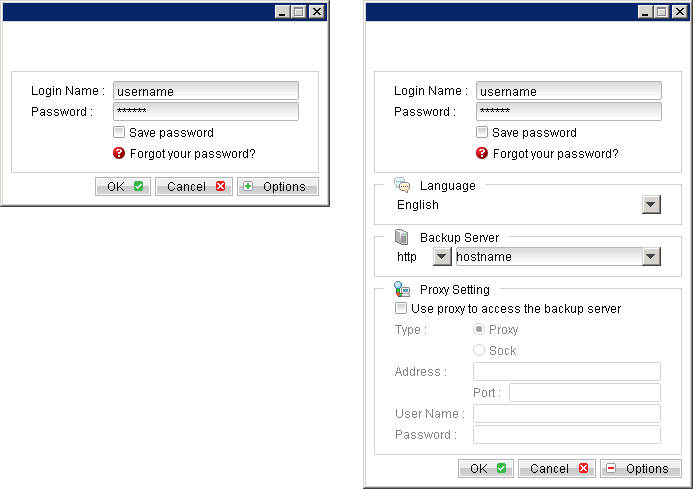
- Login to the backup application's user interface.
- Select the [Backup Settings] button and the
 button to start the New Backup Set Wizard.
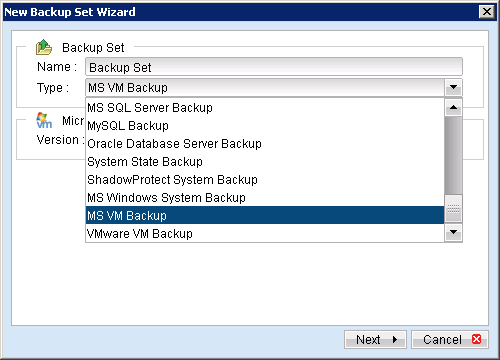
 - Create a MS VM Backup set by selecting [MS VM Backup] from the backup set type dropdown menu.
- Select the version of the hypervisor.
- Select [Next] to proceed.
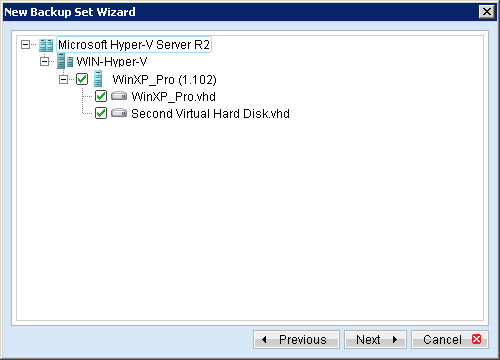
- Select the corresponding virtual machines for backup.
- Alternatively, select individual virtual disk for backup by expanding the corresponding VM sub tree.
- Configure a backup schedule for unattended backups.
- Select an encryption setting for your backup set.
- Press the [OK] button to complete the configuration of backup set.
- Scheduled backup will run automatically at the configured schedule time.
- Click [Backup] button on the left panel to perform a backup immediately.


Note: For backup of individual virtual disk, configuration files of the VM are also backed up.
Important:
For backup of virtual machine with snapshot, backup of the whole VM is highly recommended (instead of selective virtual disk).
Note:
Multiple backup schedules of different types can be configured for the same backup set.