Refer to the following instructions to backup VM running on VMware ESXi or ESX Server (assuming OBM is installed on the vCenter server):
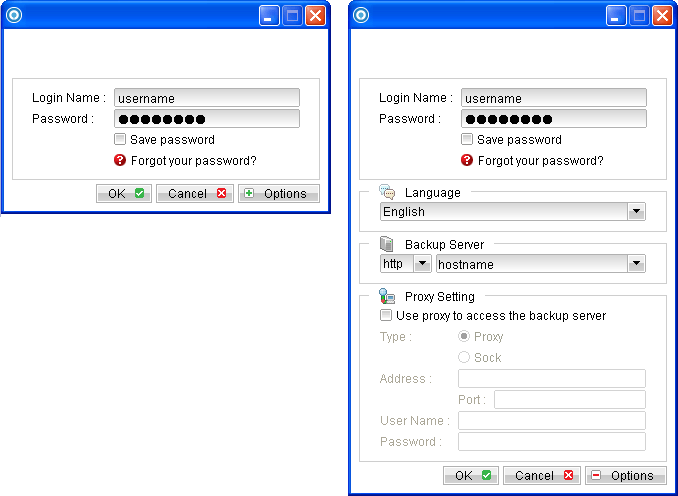
- Login to the backup application's user interface.
- Select the [Backup Settings] button and the
 button to start the New Backup Set Wizard.
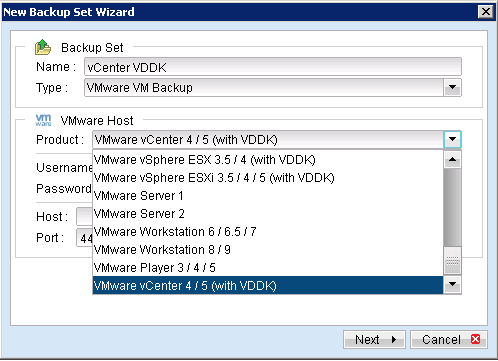
 - Create a VMware VM Backup set by selecting [VMware VM Backup] from the backup set type dropdown menu.
- Select the [VMware vCenter] from the Product dropdown box.
- Enter the corresponding information required:
- Select [Next] to proceed.
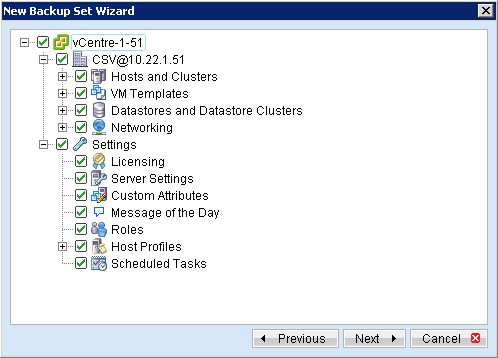
- Select the corresponding virtual machines for backup.
- Alternatively, select individual virtual disk for backup by expanding the corresponding VM sub tree.
- When OBM detects the VM is possible to enable VDDK mode backup, there are message to prompt for enabling the 'Changed Block Tracking (CBT)' or the 'Upgrade the VM hardware version', click on [Yes] to enable/proceed, it will take a few minutes for the changes. If you click [No], or the VDDK detection failure the VM backup will be using non-VDDK mode.
- To run the backup in VDDK mode, the tracking option will be turned on, the running VM will be turned off and all the snapshot will be removed.
- When the VM hardware version is below version 7, it will prompt for the upgrade, the running VM will be turned offand all the snapshot will be removed.
- Configure a backup schedule for unattended backups.
- Select an encryption setting for your backup set.
- Press the [OK] button to complete the configuration of backup set.
- Scheduled backup will run automatically at the configured schedule time.
- Click [Backup] button on the left panel to perform a backup immediately.
For backup client computer on Windows, double-click on the OBM desktop icon or right-click on the system tray icon:


Menu Items |
Description |
Name |
Enter a backup set name of your choice. |
Type |
Select backup set type [VMware VM Backup]. |
VMware Host Version |
Select version [VMware vCenter]. |
Username |
The username which has the administrator role. |
Password |
Enter the password for the user account. |
Host |
Enter the IP address or hostname of your vCenter server, do not use 'localhost' |
Port |
Enter 80 for connection via HTTP protocol or 443 for HTTPS protocol. |
vCenter Items |
Description |
Hosts and Clusters |
VM host and cluster, virtual hard disk information. |
VM Templates |
Contains virtual machine templates. |
Datastores and Datastore Clusters |
Contains information about the data stores and data store cluster in the inventory. |
Networking |
Configuration of vSphere distributed switch and network settings. |
Settings - Licensing |
vCenter and host information. |
Settings - Server Settings |
vCenter server settings such as licensing, statistic and timeout information etc. |
Settings - Custom Attributes |
Custom attributes for the VM summary. |
Settings - Message of the Day |
Message of the day in vCenter. |
Settings - Roles |
Information on the login user privilege. |
Settings - Host Profiles |
Configuration details of a specific host. |
Settings - Scheduled Tasks |
Scheduled action for the VM |
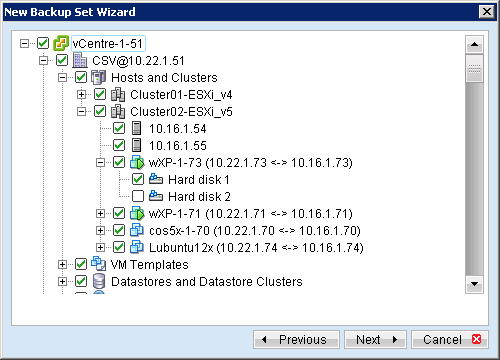
Note: For backup of individual virtual disk, configuration files of the VM are also backed up.
Important: For backup of VM with snapshot, backup of the whole VM instead of individual disk is highly recommended.
Important:
Note: Multiple backup schedules of different types can be configured for the same backup set.