Refer to the following instructions to backup VM running on VMware ESXi or ESX Server:
- Login to the backup application's user interface.
For backup client computer on Windows, double-click on the OBM desktop icon or right-click on the system tray icon:
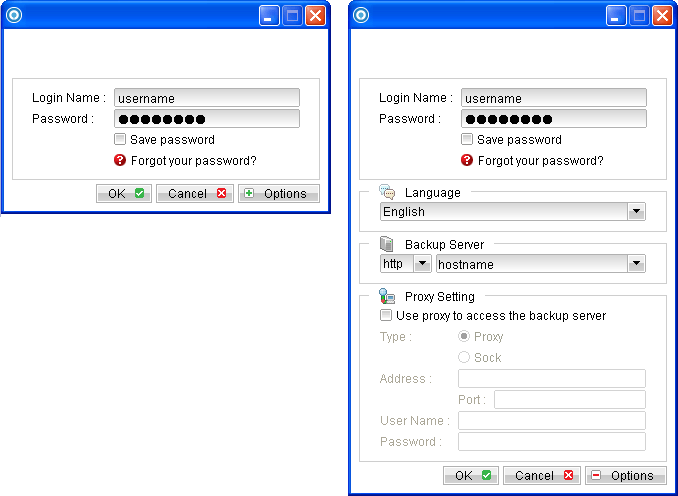 For backup client computer on Mac OS X, double-click on the OBM desktop icon.
For VMware Server installation on Linux, enter the following command to start the OBM graphical user interface:
For backup client computer on Mac OS X, double-click on the OBM desktop icon.
For VMware Server installation on Linux, enter the following command to start the OBM graphical user interface:
# sh /usr/local/obm/bin/RunOBC.sh &
 button to start the New Backup Set Wizard.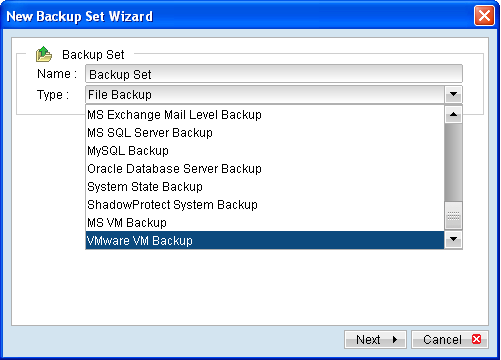
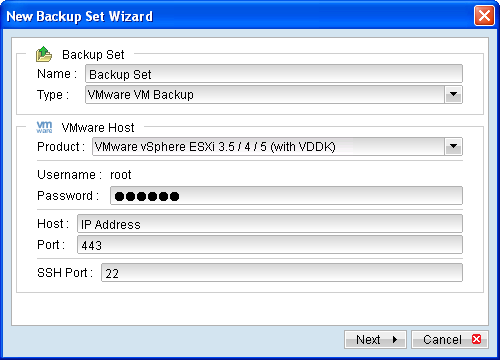
Menu Items |
Description |
Name |
Enter a backup set name of your choice. |
Type |
Select backup set type [VMware VM Backup]. |
VMware Host Version |
Select version [VMware vSphere ESXi] or [VMware vSphere ESX] according to your setup. |
Username |
The username must be root. |
Password |
Enter the password for the root account. |
Host |
Enter the IP address or hostname of your hypervisor. |
Port |
Enter 80 for connection via HTTP protocol or 443 for HTTPS protocol. |
SSH Port |
Enter the SSH port (default: port 22). |
Note:
For backup of individual virtual disk, configuration files of the VM are also backed up.
Important:
For backup of VM with snapshot, backup of the whole VM instead of individual disk is highly recommended.
Note:
- To run the backup in VDDK mode, the tracking option will be turned on, the running VM will be turned off and all the snapshot will be removed.
- When the VM hardware version is below version 7, it will prompt for the upgrade, the running VM will be turned off and all the snapshot will be removed.
Note: Multiple backup schedules of different types can be configured for the same backup set.