The OBM cannot be installed on the hypervisor (ESX or ESXi server).
For best performance, the OBM should be installed on a separate dedicated physical machine - Backup Client Machine - for backup of your virtual machines.
 Please ensure that the following requirements or recommendations are met by the Backup Client Computer:
- The Backup Client Computer is running on a supported OS platform:
- Windows
- Max OS X
- Linux
- For VMware VM backup with VMware Host ESXi / ESX - OBM version 6.7 or above is installed.
- The following TCP ports must be opened on the Backup Client Computer:
- Port 22 (required for restore)
- Port 80 and 443
- For better performance, OBM is recommended to be installed on a 64 bit computer, with multiple CPUs and cores.
- For Backup Client Computer running on Linux, GUI environment must be installed (e.g. GOME or KDE).
- Consider increasing the JVM (Java Virtual Machine) memory allocation to improve performance of the backup operation.
- It is recommended that the temporary directory have disk space of at least 100% of the largest sized virtual machine to be backed up.
- It is recommended that the temporary directory be configured on a local drive.
- It is recommended that the temporary directory is not configured on the same partition which the operating system is installed on.
- For backup of virtual machine with snapshot, backup of the whole VM instead of individual disk is highly recommended.
- Consider performing routine recovery test to ensure your backup is setup and performed properly.
- Please consider the maximum file size allowed for different ESX/ESXi version.
For ESXi 5.0, this error occurs when any individual flat .vmdk file exceeds 2,181,972,430,848 bytes. This is the size generated when 'Adding a virtual disk' with size of 1.984492366201720 TB is specified."
For different block size setting on VMFS, the maximum file size may be different, please refer to the following articles for details:
http://kb.vmware.com/kb/1012384
http://kb.vmware.com/kb/1003565
The absolute maximum snapshot file size is limited to roughly 2 TB. However, different block size setting on the VMFS datastore may have a smaller size limit, adjust the block size setting when necessary. - Consider to disable the memory snapshot or quiesce guest options when taking snapshot for VMware VM backup, to shorten the time required for the process.
- Snapshot the virtual machine's memory
- Quiesce guest file system (Needs VMware Tools installed)
- Open the 'afc.opt' file found within the OBM installation folder using a text editor:
afc.opt
...
com.ahsay.afc.vmware.debug=
com.ahsay.afc.vmware.VMHost.SkipRemoveSnapshot=
com.ahsay.afc.vmware.Vmrun.debug=
...
- Add the following entries to the 'afc.opt' file:
afc.opt (Updated)
...
com.ahsay.afc.vmware.debug=
com.ahsay.afc.vmware.VMHost.SkipRemoveSnapshot=
com.ahsay.afc.vmware.Vmrun.debug=
com.ahsay.afc.vmware.VMHost.SkipMemoryDump=
com.ahsay.afc.vmware.VMHost.SkipQuiesce=
...
- Enable the option by adding the 'TRUE' parameter to the newly added entries:
afc.opt (Updated)
...
com.ahsay.afc.vmware.debug=
com.ahsay.afc.vmware.VMHost.SkipRemoveSnapshot=
com.ahsay.afc.vmware.Vmrun.debug=
com.ahsay.afc.vmware.VMHost.SkipMemoryDump=TRUE
com.ahsay.afc.vmware.VMHost.SkipQuiesce=TRUE
...
- Save the changes, the options will be disabled when the next backup is performed.
- Please ensure that the following requirements are met by the Hypervisor:
- SSH must be enabled on the Hypervisor.
- The root account must be enabled.
- The following TCP ports must be opened on the Backup Client Computer:
- Port 22 (required for restore)
- Port 80 and 443
- It is recommended that the datastore have disk space of the largest sized virtual machine to be backed up.
- For VMware on 64-bit Linux, please add the following soft link
For VMware VM backup with VMware Host vCenter - OBM version 6.11 or above is installed. For VMware VM backup with virtual disk development kit (VDDK) - OBM version 6.13 or above is installed. With OBM 6.13.2.0 or above, OBM will apply the in-file delta settings to the VDDK backup settings (except delta merge).
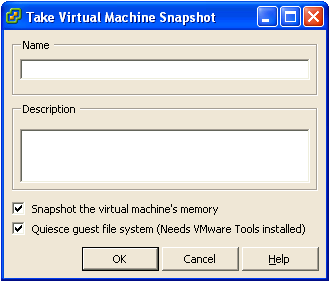
By default, both 'Snapshot the virtual machine's memory' and 'Quiesce guest file system' are enabled when taking snapshot for backup. To disable these options, please refer to the following instruction:
To enable root SSH login on an ESX/ESXi host, please follow the below instructions from VMware. http://kb.vmware.com/selfservice/microsites/search.do?language=en_US&cmd=displayKC&externalId=8375637
OBM ESX / ESXi backup set requires the root account for backup and restore.
ln -s /usr/lib/vmware-vix/libvixAllProducts.so /usr/lib64/
Assuming the "libvixAllProducts.so" is under "/usr/lib/vmware-vix/".