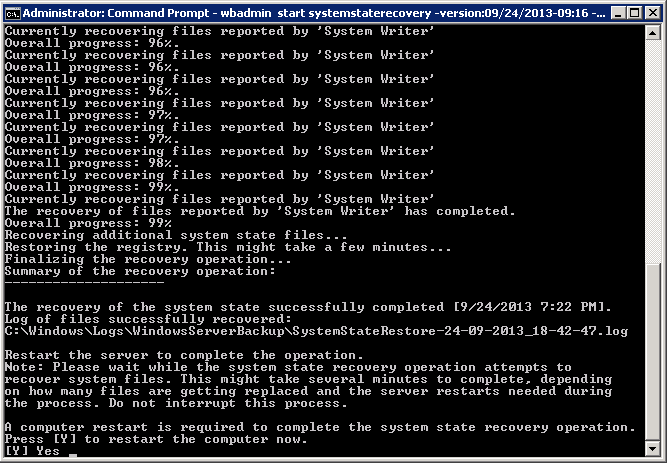
Refer to the following instructions to restore Windows System State on Windows Server 2008 / R2, SBS 2011:
- Install the OBM on the machine to be restored to.
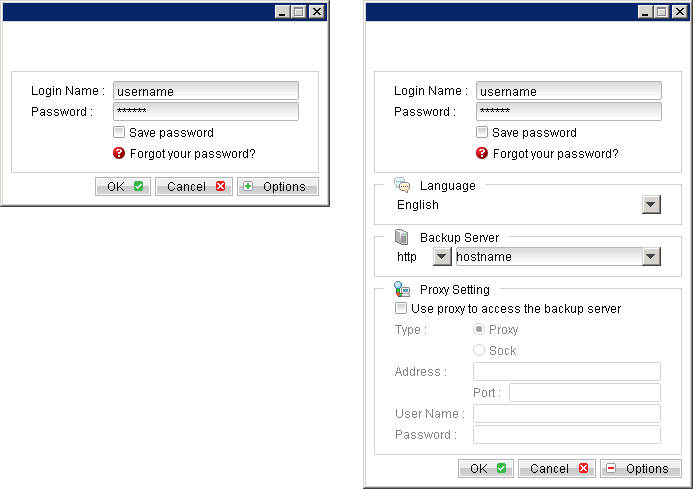
- Login to the backup application's user interface.
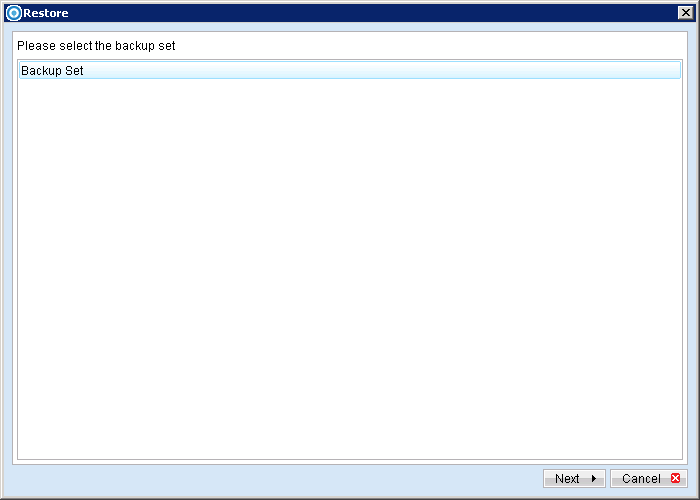
- Select the [Restore] button and the corresponding backup set.
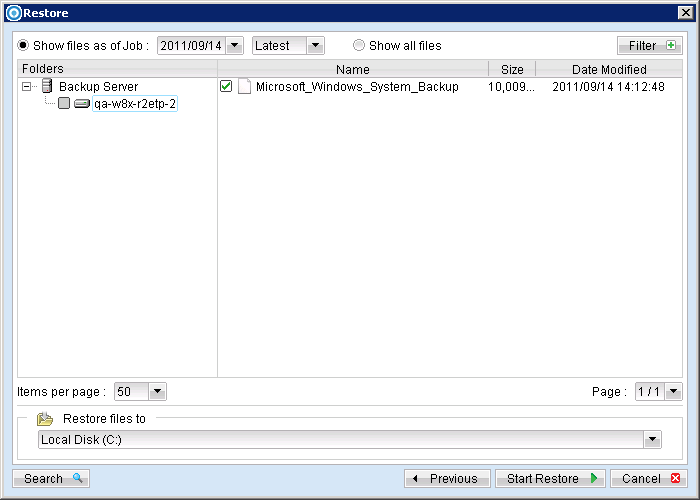
- Select the System State file to be restored and its restore destination.
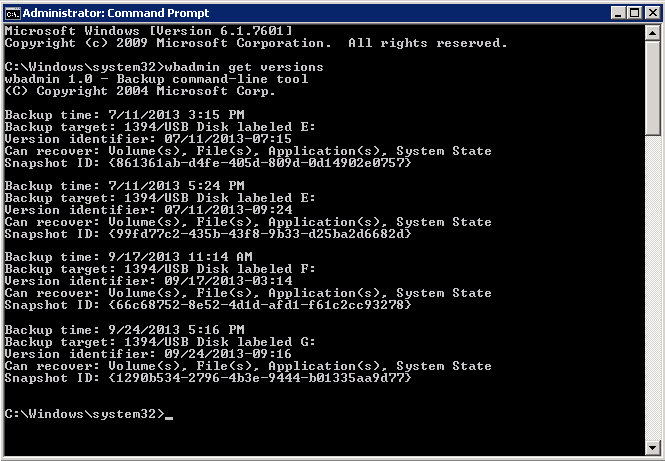
- To view the backup version identifier, run the following command in the command prompt as administrator.
>wbadmin get versions
eg:
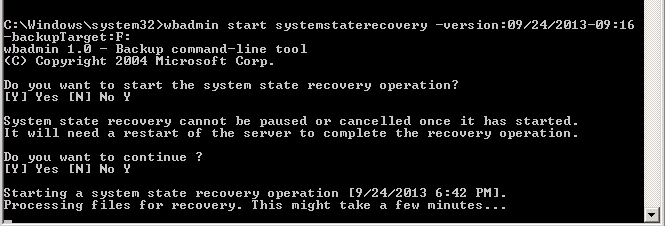
>wbadmin start systemstaterecovery -version:<VersionIdentifier> -backupTarget:<BackupDestinationVolume>

eg:

>wbadmin start systemstaterecovery -version:09/24/2013-09:16 -backupTarget:G:
eg:
eg: