Section 1 - Help Centre
This section provides useful help and tips over and above the formal support manual sections 2 through 18.
1.12 How to perform a Farm backup for SharePoint Server 2010 and 2013?
Description:
How to perform a Farm backup for SharePoint Server 2010 and 2013?
Steps:
To backup SharePoint Server, the following steps are required:
- Commands are issued to the SharePoint application to output the backup data.
- The OBM will backup the output data from the client server offsite to the OBS.
Assumption:
The following assumption are made:
- The Windows PowerShell feature has been installed on the corresponding SharePoint server. If the Windows PowerShell feature has not been installed, you can enable the PowerShell feature by opening the Server Manager application.
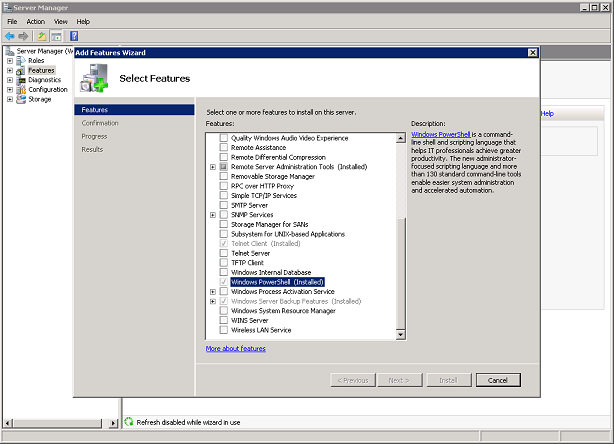
- PowerShell execution policy have been configured to allow unsigned local script.
If not, the following error will be flagged when the PowerShell script is executed:
${ScriptName.ps1} cannot be loaded because the execution of scripts is disabled on this system
The reason for this error is the security setting on the server does not allow you to execute a script. By default, the Execution Policy is set to Restricted. This setting means that you may not run any PowerShell script.
Execute the following command within PowerShell to allow the script to run:
>Set-ExecutionPolicy RemoteSigned
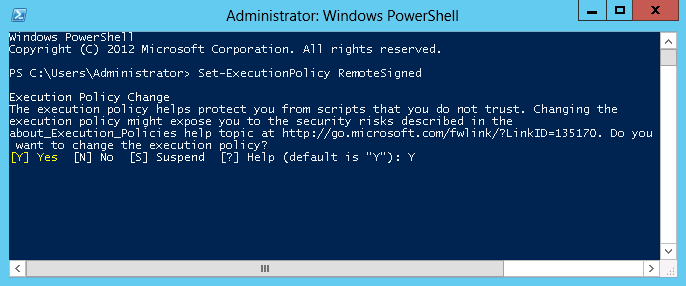
This will allow scripts written on the local computer to be executed without a digital signature, but any script downloaded externally must have a signature to execute.
Alternatively, you can also sign the downloaded PowerShell script file: http://technet.microsoft.com/en-us/maga ... px?pr=blog
Important Note:
A farm backup starts a Microsoft SQL Server backup of content and service application databases, writes configuration content to files, and also backs up the Search index files and synchronizes them with the Search database backups.
Web servers setting in the SharePoint Server environment are not included in a farm backup, they include:
- Application pool account passwords
- HTTP compression settings
- Time-out settings
- Custom Internet Server Application Programming Interface (ISAPI) filters
- Computer domain membership
- Internet Protocol security (IPsec) settings
- Network Load Balancing settings
- Secure Sockets Layer (SSL) certificates
- Dedicated IP address settings
Please document the above settings for future reference and restoration purposes. To compliment the backup and effectively backup the SharePoint server, also use the MS Windows System module of OBM to backup your server.
Instruction:
Refer to the following steps to perform a Farm backup for your SharePoint server:
Prepare the pre-backup command:
- Install OBM on the Sharepoint Server.
- Download the spsFarmBackup.bat and BackupSharePointFarm.ps1 file by Clicking Here.
- Extract and place both files within the C:\ root directory.
- Open the BackupSharePointFarm.ps1 file with a text editor:
| BackupSharePointFarm.ps1 |
| ... |
| $DIRECTORY = "\\servername\path" |
| |
| |
| Add-PsSnapin Microsoft.SharePoint.Powershell |
| Backup-SPFarm -Directory $DIRECTORY -Force -BackupMethod full |
| exit |
| ... |
- Edit the '$DIRECTORY' variable with the backup destination path.
Note:
Consider the following when setting up the backup destination path:
- The SharePoint Central Admin app pool account must have access to the location of the backup.
- The MS SQL Service account must have access to the location of the backup.
- The OBM scheduler service must have access to the location of the backup.
- The location must be accessible from the SharePoint Server the backup is running on.
- The location must be accessible from the SQL instance that SharePoint Server is trying to back up.
- If the MS SQL and SharePoint applications are not installed on the same server, use a network shared path (UNC path).
In this example, the MS SQL Server and SharePoint Server both reside on the same server, therefore, a local backup destination is specified.
| BackupSharePointFarm.ps1 (Updated) |
| ... |
| $DIRECTORY = "E:\FarmBackupDir" |
| |
| |
| Add-PsSnapin Microsoft.SharePoint.Powershell |
| Backup-SPFarm -Directory $DIRECTORY -Force -BackupMethod full |
| exit |
| ... |
- Save and exit from the text editor.
- Manually create the backup destination folder (e.g. E:\FarmBackupDir) specified in the BackupSharePointFarm.ps1 file
Configure the pre-backup command on the OBM:
- Login to the OBM console, create a file type backup set for the Sharepoint Farm backup.
- Select the backup destination directory specified in the BackupSharePointFarm.ps1 file as Backup Source of the backup set:
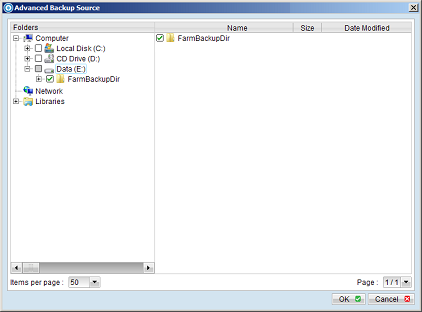
- Accept the default encryption settings by pressing the [OK] button if no change is necessary.
- Select the Sharepoint Farm backup set in the [Backup Setting] menu, select the [Command Line Tool].
- Press the [Add] button under the Pre-Backup section on the right panel, enter the following entries in the corresponding text fields:
Working Directory: C:\
Command: spsFarmBackup.bat
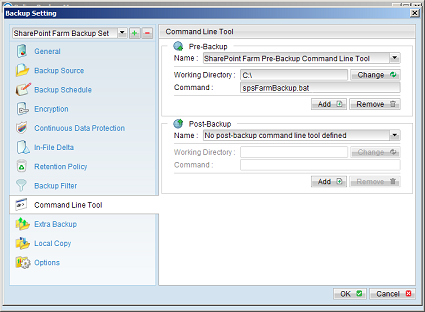
- Press the [OK] button to save this setting.
The Sharepoint Server can now be backed up by pressing the [Backup] button on the OBM console.