Product Version: ACB & OBM
Operating System: Microsoft platforms
Description: How to troubleshoot missed backups
Customers that use 3rd party monitoring systems have asked if the OBM/ACB is able to generate a windows Event Log so their monitoring system can track backup status (success/warning/failures).
Currently the OBM/ACB is not able to generate an Event Log, however by using the pre-backup command and a VBS script we can check the status of backups and log an event.
The scripts are provided as is, we can only offer limited support and cannot guarantee they will work in all circumstances.
Installation:
Download http://portal.vsl-net.com/downloads/utilities/eventLog.zip
Unzip eventLog.zip (main.bat, main.vbs and getstatus.vbs) into the Online backup program folder (C:\Program Files\Backup Manager\).
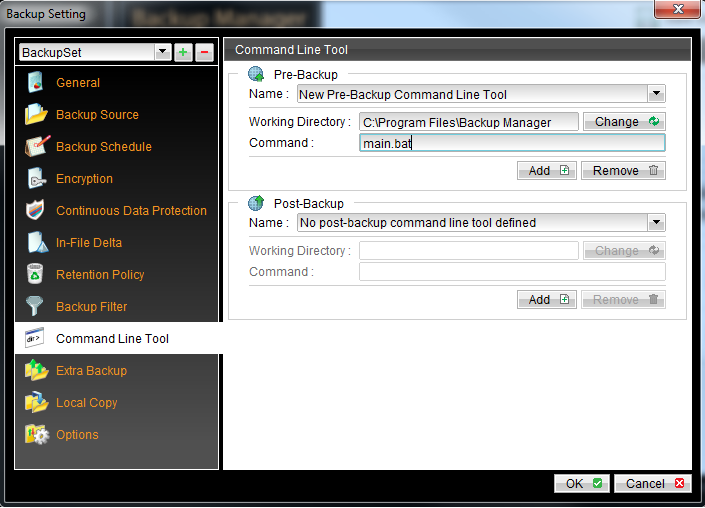
In each backup set, create a pre backup command that Runs main.bat.
- Open the OBM
- Select the Cog Icon
- Select the Backup Set via the drop down
- Select "Command Line Tool"
- Click "Add" in the "Pre-Backup" Section
- Change "Working Directory:" to C:\Program Files\Backup Manager
- Set "Command:" to main.bat
- Click Ok
Shortly after a backup completes an event should be logged in the Application Event Log
WARNING!!!!!!!!!!
Jobs must be staggered by a minimum of 1 minute for this script to work, as the script only uses the following search string to determine backup job ID and Log file YYYY-MM-DD-hh-mm and will break if backup jobs are run in the same minute.
Event log outputs:
Please refer to the windows application event log, source WSH. Also look in the getstatus.vbs for explanation of event log entries.
ERRORS will be logged as
Source: WSH
Event ID: 1
WARNINGS will be logged as
Source: WSH
Event ID: 2
SUCCESSFUL will be logged as
Source: WSH
Event ID: 4
The General tab will include text including the Backup Job ID, the Backup Job ID relates to a backup job name which you can determine from your {userhome}\.obm\config\BsList.ini file
Example Event
Log Name: Application
Source: WSH
Date: 2014/05/06 02:23:02 PM
Event ID: 4
Task Category: None
Level: Information
Keywords: Classic
User: N/A
Computer: XXXXXXXXXX
Description:
BACKUP: C:\Users\paulh\.obm\log\1266219769697\Backup\2014-05-06-14-20-52.log : [2014/05/06 14:21:42] [info] BS_STOP_SUCCESS , OBS_STATUS: 1, OBS_JOB_ID:1266219769697